> ## Documentation Index
> Fetch the complete documentation index at: https://docs.vectrade.io/llms.txt
> Use this file to discover all available pages before exploring further.
# Settings
> Complete reference for VTrade platform configuration — account management, session control, localization, appearance customization, notification preferences, trading defaults, and legal documentation.
# Settings
The Settings panel provides centralized control over your VTrade account configuration, interface preferences, and compliance documentation. Access via **Settings** in the left sidebar navigation or the gear icon (⚙️) in the top navigation bar.
Settings are organized into seven tabs, each governing a distinct configuration domain.
***
## Account
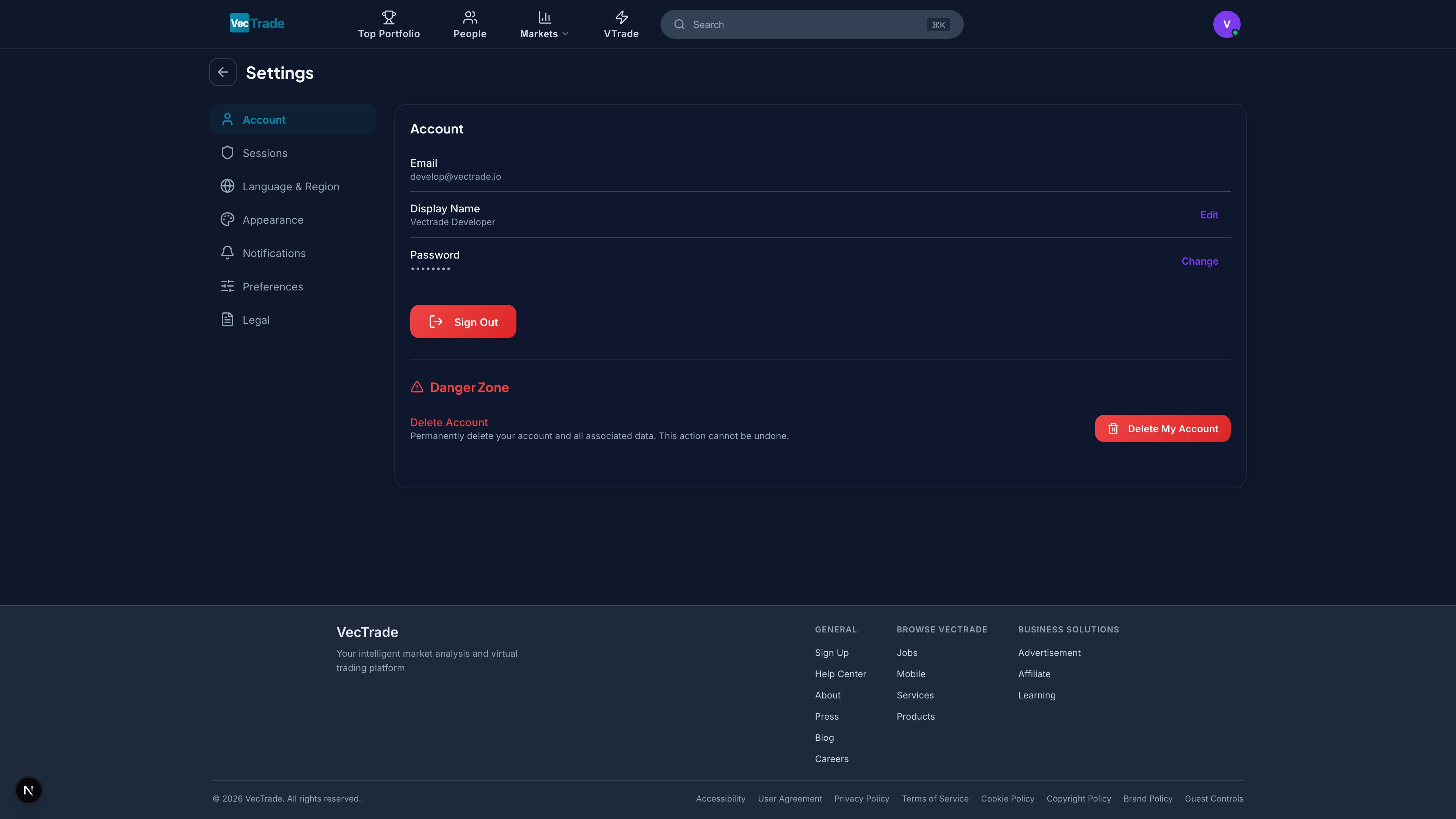
The Account tab manages your identity and credentials — including email, display name, password management, and account lifecycle controls.
 ### Account Information
| Field | Description | Editable |
| ----------------- | ----------------------------------------------------------------------- | ----------------------------------- |
| **Email Address** | Primary email used for login and notifications | Read-only (displayed for reference) |
| **Display Name** | Your public name shown across the platform (leaderboard, feed, profile) | ✓ (click Edit to modify inline) |
### Password Management
| Action | Process |
| ------------------- | ------------------------------------------------------------------------------------ |
| **Change Password** | Enter current password → Enter new password → Confirm new password → Save |
| **Set Password** | If you signed up via OAuth (Google/GitHub) and have no password set, you can add one |
Use a password manager to generate and store a strong, unique password for VTrade. Avoid using the same password across multiple financial platforms.
### Sign Out
Click **Sign Out** to terminate your current session and return to the login page.
### Danger Zone — Account Deletion
| Step | Description |
| ---- | ----------------------------------------------- |
| 1 | Click **Delete Account** (red button at bottom) |
| 2 | Type your display name to confirm intent |
| 3 | Enter your password (if password is set) |
| 4 | Click **Permanently Delete My Account** |
**Deletion consequences:**
* All positions are closed at current market prices
* All pending orders are cancelled
* Remaining VCR balance is forfeited
* Profile, posts, comments, and messages are permanently removed
* API keys are revoked immediately
* Competition history and achievements are erased
* This action is **irreversible**
***
## Sessions
The Sessions tab displays all currently authenticated sessions and provides control over active logins. Use this to monitor where your account is signed in and revoke access from unrecognized devices.
### Account Information
| Field | Description | Editable |
| ----------------- | ----------------------------------------------------------------------- | ----------------------------------- |
| **Email Address** | Primary email used for login and notifications | Read-only (displayed for reference) |
| **Display Name** | Your public name shown across the platform (leaderboard, feed, profile) | ✓ (click Edit to modify inline) |
### Password Management
| Action | Process |
| ------------------- | ------------------------------------------------------------------------------------ |
| **Change Password** | Enter current password → Enter new password → Confirm new password → Save |
| **Set Password** | If you signed up via OAuth (Google/GitHub) and have no password set, you can add one |
Use a password manager to generate and store a strong, unique password for VTrade. Avoid using the same password across multiple financial platforms.
### Sign Out
Click **Sign Out** to terminate your current session and return to the login page.
### Danger Zone — Account Deletion
| Step | Description |
| ---- | ----------------------------------------------- |
| 1 | Click **Delete Account** (red button at bottom) |
| 2 | Type your display name to confirm intent |
| 3 | Enter your password (if password is set) |
| 4 | Click **Permanently Delete My Account** |
**Deletion consequences:**
* All positions are closed at current market prices
* All pending orders are cancelled
* Remaining VCR balance is forfeited
* Profile, posts, comments, and messages are permanently removed
* API keys are revoked immediately
* Competition history and achievements are erased
* This action is **irreversible**
***
## Sessions
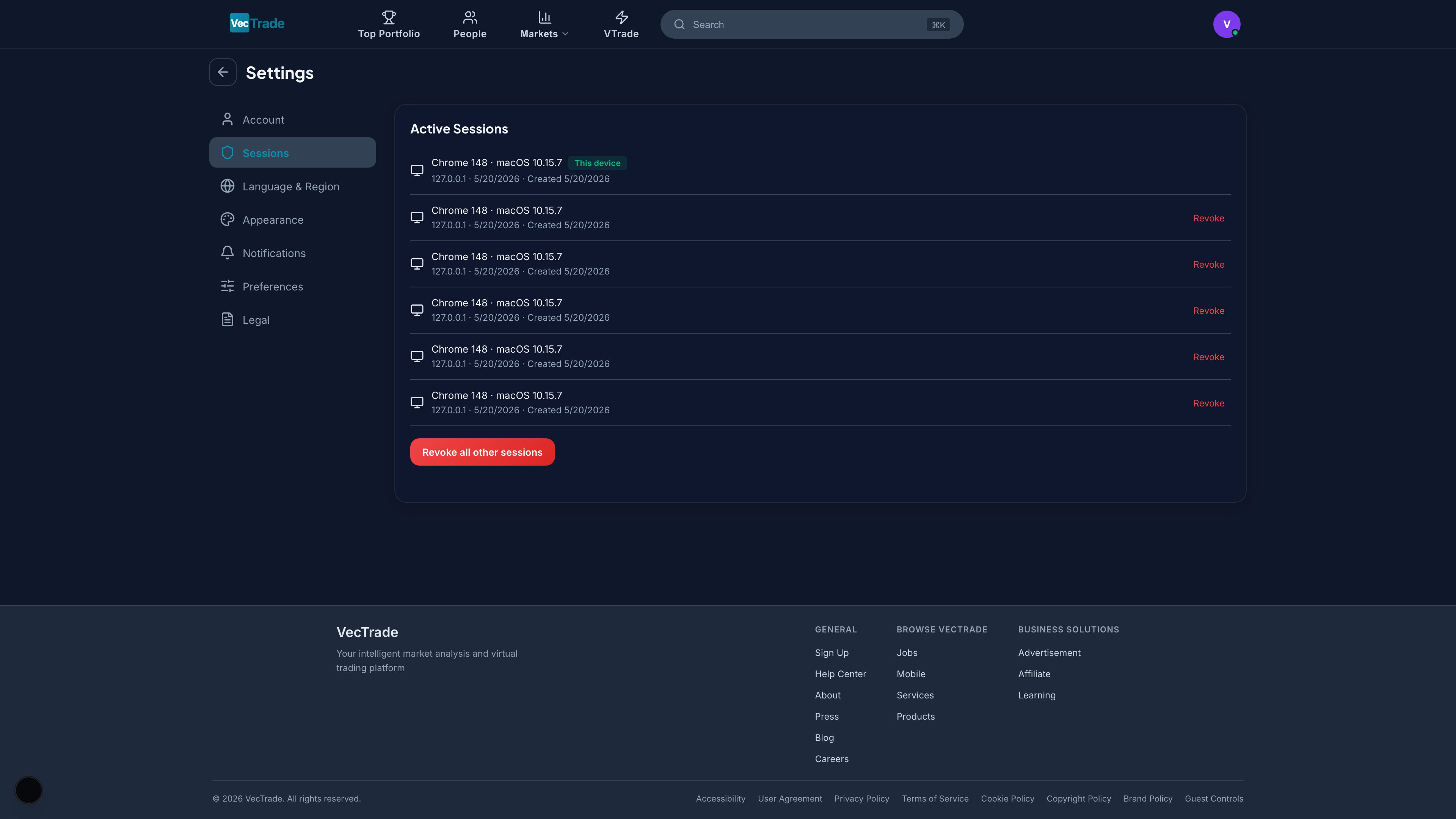
The Sessions tab displays all currently authenticated sessions and provides control over active logins. Use this to monitor where your account is signed in and revoke access from unrecognized devices.
 ### Active Sessions List
Each session displays:
| Field | Description |
| ------------------- | -------------------------------------------------------------------------------- |
| **Device** | Device type icon (desktop/mobile/tablet) with browser + OS identifier |
| **IP Address** | Source IP address of the session |
| **Last Active** | Timestamp of most recent activity |
| **Created** | When the session was first established |
| **Current Session** | Your active session is highlighted with a "Current" badge — you cannot revoke it |
### Session Actions
| Action | Description |
| --------------------- | -------------------------------------------------------------------------------------------------------------- |
| **Revoke** | Terminate a specific session immediately (click Revoke, then Confirm) |
| **Revoke All Others** | One-click button to terminate all sessions except your current one (appears when more than one session exists) |
### Security Best Practices
Review your active sessions periodically. If you see a session from an unfamiliar location or device:
1. Click **Revoke** on that session immediately
2. Change your password
3. Review your API keys for unauthorized creation
***
## Language & Region
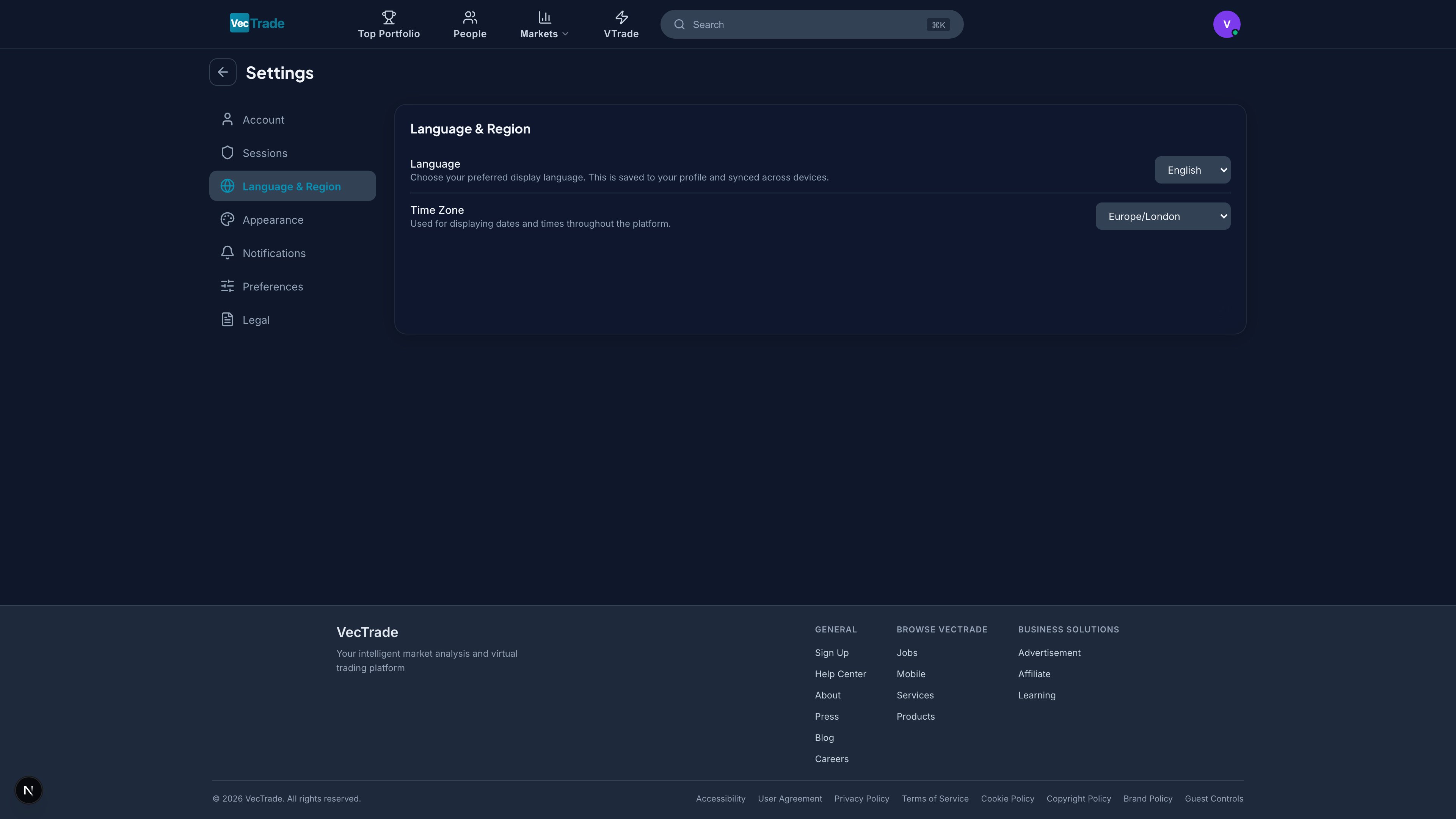
Configure the platform's language and timezone to match your locale.
### Active Sessions List
Each session displays:
| Field | Description |
| ------------------- | -------------------------------------------------------------------------------- |
| **Device** | Device type icon (desktop/mobile/tablet) with browser + OS identifier |
| **IP Address** | Source IP address of the session |
| **Last Active** | Timestamp of most recent activity |
| **Created** | When the session was first established |
| **Current Session** | Your active session is highlighted with a "Current" badge — you cannot revoke it |
### Session Actions
| Action | Description |
| --------------------- | -------------------------------------------------------------------------------------------------------------- |
| **Revoke** | Terminate a specific session immediately (click Revoke, then Confirm) |
| **Revoke All Others** | One-click button to terminate all sessions except your current one (appears when more than one session exists) |
### Security Best Practices
Review your active sessions periodically. If you see a session from an unfamiliar location or device:
1. Click **Revoke** on that session immediately
2. Change your password
3. Review your API keys for unauthorized creation
***
## Language & Region
Configure the platform's language and timezone to match your locale.
 ### Language Selection
VTrade supports the following interface languages:
| Language | Code |
| -------------------------- | ------- |
| English | `en` |
| 繁體中文 (Traditional Chinese) | `zh-TW` |
| 简体中文 (Simplified Chinese) | `zh-CN` |
| 日本語 (Japanese) | `ja` |
| 한국어 (Korean) | `ko` |
| Español (Spanish) | `es` |
| Français (French) | `fr` |
| Deutsch (German) | `de` |
Language changes take effect immediately — no page reload required. Untranslated strings (if any) fall back to English.
### Timezone Configuration
| Setting | Description |
| ------------ | ----------------------------------------------------------------------------------------------------------------------- |
| **Timezone** | Dropdown with IANA timezone identifiers (e.g., `America/New_York`, `Asia/Hong_Kong`, `Europe/London`) |
| **Effect** | All timestamps throughout the platform (trade history, orders, charts, notifications) display in your selected timezone |
The timezone defaults to your browser/system setting. You can override it to any IANA timezone.
***
## Appearance
Customize the platform's visual presentation to match your preferences and working environment. All changes apply immediately without requiring a page reload.
### Language Selection
VTrade supports the following interface languages:
| Language | Code |
| -------------------------- | ------- |
| English | `en` |
| 繁體中文 (Traditional Chinese) | `zh-TW` |
| 简体中文 (Simplified Chinese) | `zh-CN` |
| 日本語 (Japanese) | `ja` |
| 한국어 (Korean) | `ko` |
| Español (Spanish) | `es` |
| Français (French) | `fr` |
| Deutsch (German) | `de` |
Language changes take effect immediately — no page reload required. Untranslated strings (if any) fall back to English.
### Timezone Configuration
| Setting | Description |
| ------------ | ----------------------------------------------------------------------------------------------------------------------- |
| **Timezone** | Dropdown with IANA timezone identifiers (e.g., `America/New_York`, `Asia/Hong_Kong`, `Europe/London`) |
| **Effect** | All timestamps throughout the platform (trade history, orders, charts, notifications) display in your selected timezone |
The timezone defaults to your browser/system setting. You can override it to any IANA timezone.
***
## Appearance
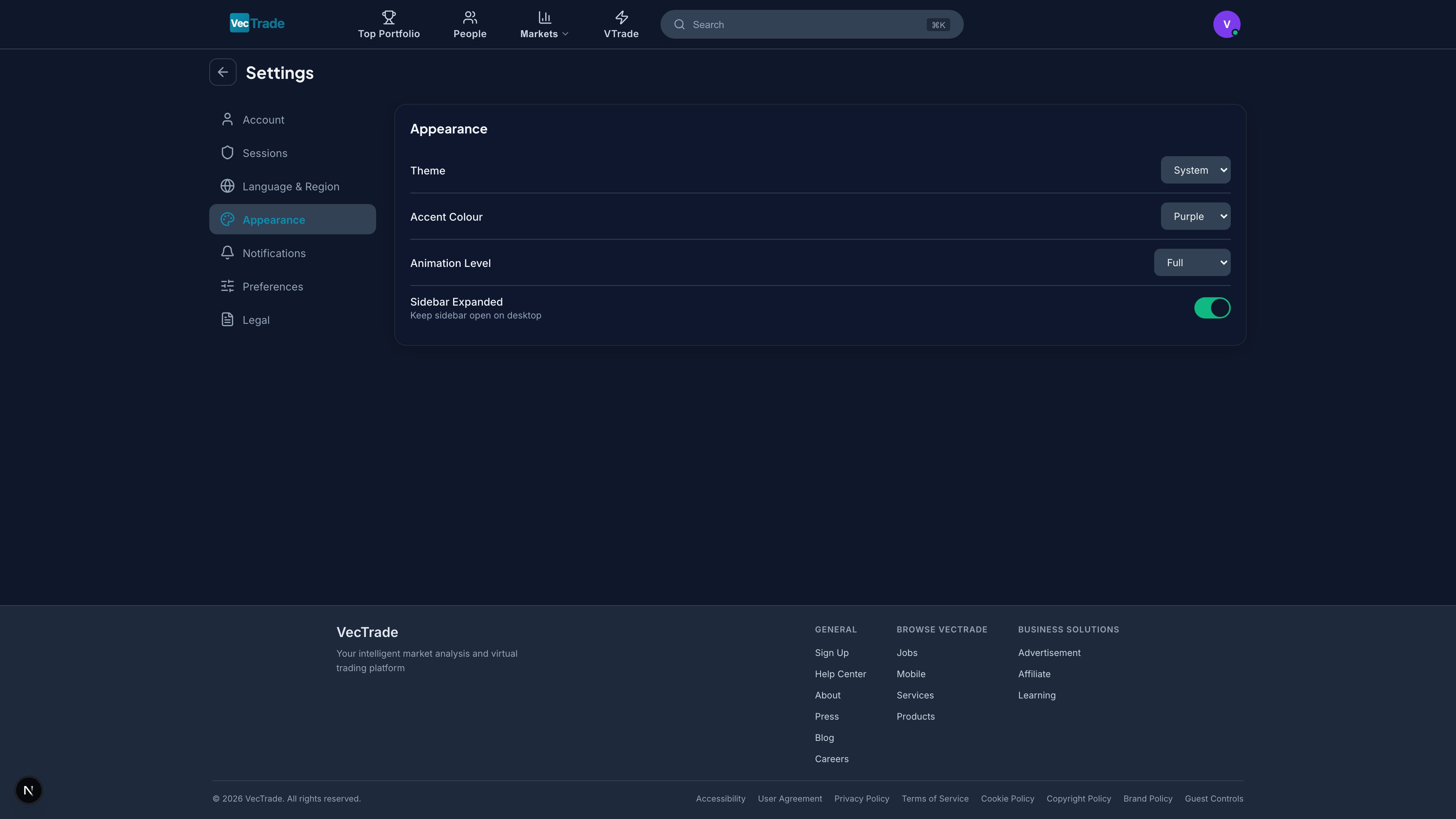
Customize the platform's visual presentation to match your preferences and working environment. All changes apply immediately without requiring a page reload.
 ### Theme
| Option | Description |
| ---------- | --------------------------------------------------------------------------------------------------------------------------------------- |
| **Light** | White/grey background with dark text — suited for well-lit environments |
| **Dark** | Dark grey/black background with light text — reduces eye strain in dim environments; preferred by most traders for extended screen time |
| **System** | Automatically matches your operating system's light/dark mode setting |
### Accent Colour
Select from a palette of accent colours that apply to buttons, active tabs, links, and progress indicators:
| Colour | Hex | Description |
| ---------------- | --------- | ---------------------------- |
| Purple (Default) | `#7C3AED` | Premium, distinctive |
| Blue | `#3B82F6` | Professional, neutral |
| Green | `#10B981` | Gains-focused |
| Pink | `#EC4899` | Vibrant, modern |
| Orange | `#F59E0B` | Energetic, attention-drawing |
### Animation Level
| Setting | Description |
| ----------- | --------------------------------------------------------------------------------------- |
| **Full** | All smooth transitions, hover effects, loading spinners, and page animations enabled |
| **Reduced** | Minimal transitions; disables non-essential animations for accessibility or performance |
| **Off** | No animations — instant state changes throughout the interface |
### Sidebar
| Setting | Description |
| -------------------- | ------------------------------------------------------------------------------- |
| **Sidebar Expanded** | Toggle whether the left navigation sidebar starts in expanded or collapsed mode |
***
## Notifications
Configure which events generate notifications. Each category can be independently toggled on or off to control what appears in your notification panel.
### Theme
| Option | Description |
| ---------- | --------------------------------------------------------------------------------------------------------------------------------------- |
| **Light** | White/grey background with dark text — suited for well-lit environments |
| **Dark** | Dark grey/black background with light text — reduces eye strain in dim environments; preferred by most traders for extended screen time |
| **System** | Automatically matches your operating system's light/dark mode setting |
### Accent Colour
Select from a palette of accent colours that apply to buttons, active tabs, links, and progress indicators:
| Colour | Hex | Description |
| ---------------- | --------- | ---------------------------- |
| Purple (Default) | `#7C3AED` | Premium, distinctive |
| Blue | `#3B82F6` | Professional, neutral |
| Green | `#10B981` | Gains-focused |
| Pink | `#EC4899` | Vibrant, modern |
| Orange | `#F59E0B` | Energetic, attention-drawing |
### Animation Level
| Setting | Description |
| ----------- | --------------------------------------------------------------------------------------- |
| **Full** | All smooth transitions, hover effects, loading spinners, and page animations enabled |
| **Reduced** | Minimal transitions; disables non-essential animations for accessibility or performance |
| **Off** | No animations — instant state changes throughout the interface |
### Sidebar
| Setting | Description |
| -------------------- | ------------------------------------------------------------------------------- |
| **Sidebar Expanded** | Toggle whether the left navigation sidebar starts in expanded or collapsed mode |
***
## Notifications
Configure which events generate notifications. Each category can be independently toggled on or off to control what appears in your notification panel.
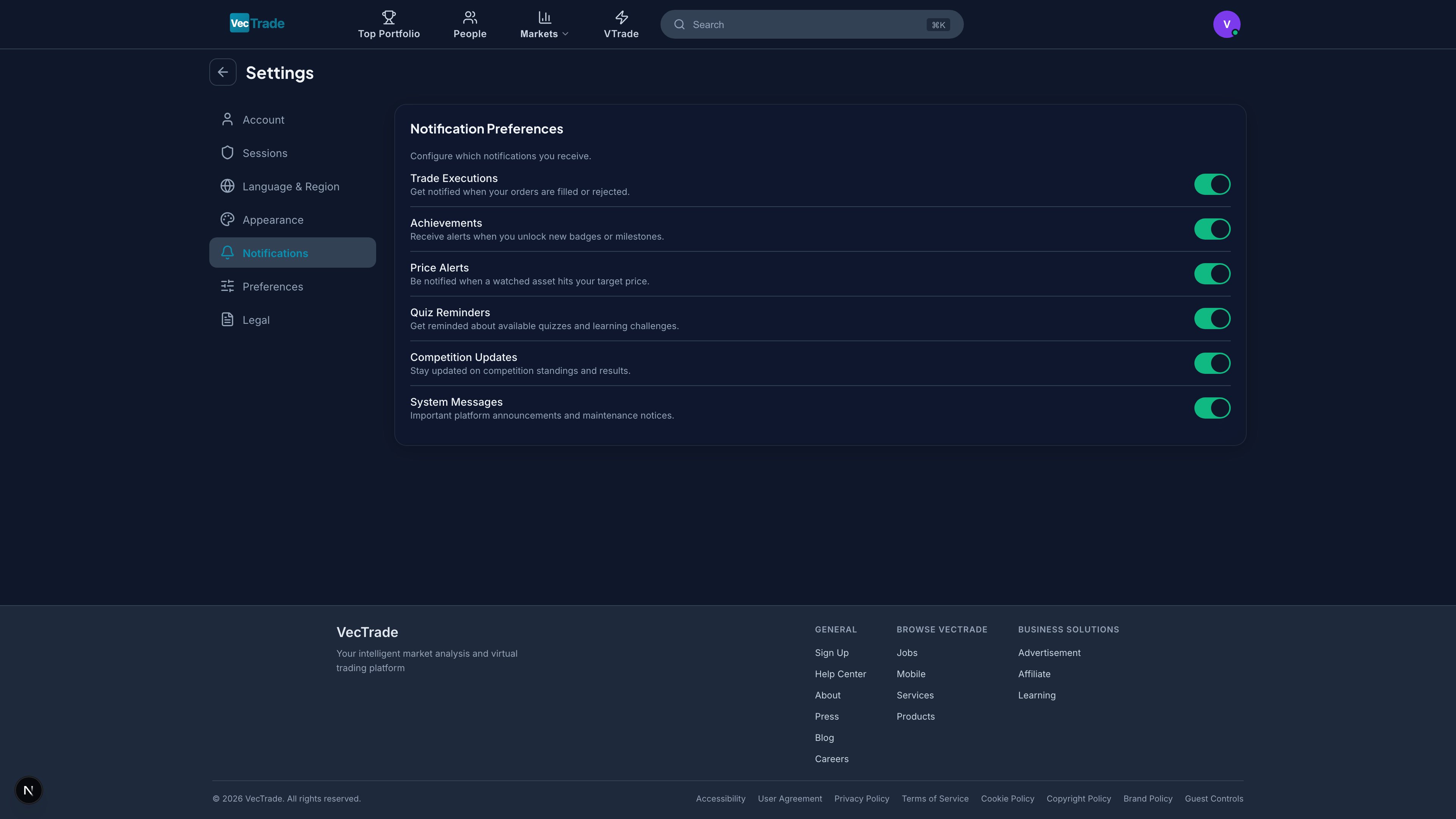 ### Notification Categories
| Category | Example Events | Default |
| -------------------- | --------------------------------------------------- | --------- |
| **Trade Executions** | Order filled, order cancelled, order rejected | ✓ Enabled |
| **Achievements** | Badge earned, level up, milestone reached | ✓ Enabled |
| **Price Alerts** | Watchlist alert triggered, target price reached | ✓ Enabled |
| **Quiz Reminders** | Daily quiz available, streak at risk | ✓ Enabled |
| **Competition** | Contest started, rank changed, prizes awarded | ✓ Enabled |
| **System** | Maintenance windows, new features, security notices | ✓ Enabled |
All notifications are delivered in-app via the notification bell in the top navigation. Toggle any category off to suppress those notifications entirely.
***
## Preferences
The Preferences tab configures default trading behavior. These settings directly affect your trading workflow — review them carefully before enabling features like one-click trading.
### Notification Categories
| Category | Example Events | Default |
| -------------------- | --------------------------------------------------- | --------- |
| **Trade Executions** | Order filled, order cancelled, order rejected | ✓ Enabled |
| **Achievements** | Badge earned, level up, milestone reached | ✓ Enabled |
| **Price Alerts** | Watchlist alert triggered, target price reached | ✓ Enabled |
| **Quiz Reminders** | Daily quiz available, streak at risk | ✓ Enabled |
| **Competition** | Contest started, rank changed, prizes awarded | ✓ Enabled |
| **System** | Maintenance windows, new features, security notices | ✓ Enabled |
All notifications are delivered in-app via the notification bell in the top navigation. Toggle any category off to suppress those notifications entirely.
***
## Preferences
The Preferences tab configures default trading behavior. These settings directly affect your trading workflow — review them carefully before enabling features like one-click trading.
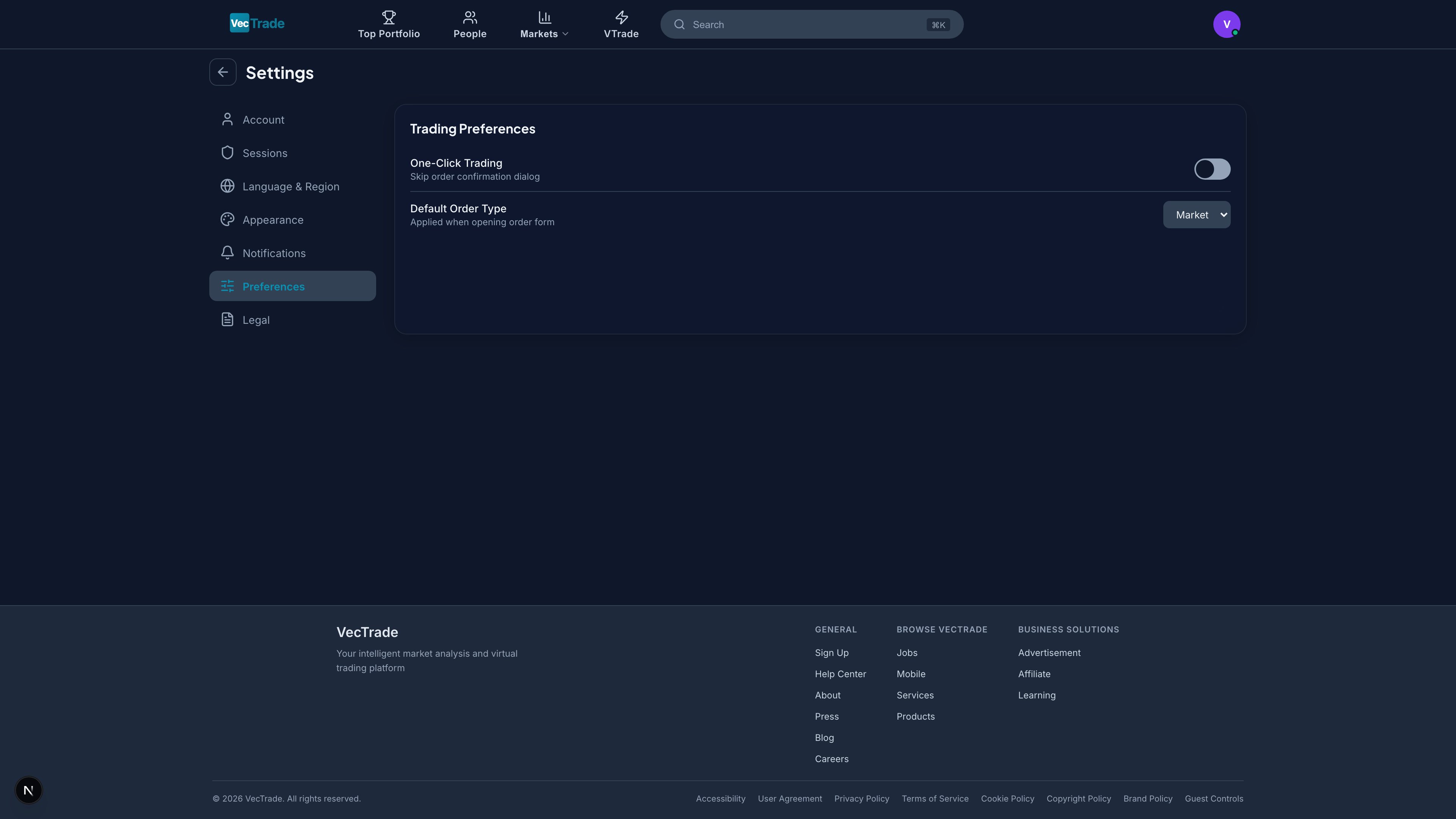 ### One-Click Trading
| Setting | Description |
| ---------------------------- | ----------------------------------------------------------------------------------------------------------- |
| **Enable One-Click Trading** | When ON, clicking Buy/Sell on the trading panel submits the order immediately without a confirmation dialog |
| **Default State** | OFF (confirmation dialog shown for every order) |
One-Click Trading removes the order confirmation step. Orders are submitted immediately upon clicking Buy/Sell. This is designed for experienced traders who prioritize execution speed over accidental click protection.
### Default Order Type
| Setting | Options | Description |
| ---------------------- | -------------- | -------------------------------------------------------- |
| **Default Order Type** | Market / Limit | The pre-selected order type when the trading panel loads |
***
## Legal
The Legal tab provides access to all governing documents and regulatory disclosures that define the terms of your relationship with VTrade.
### One-Click Trading
| Setting | Description |
| ---------------------------- | ----------------------------------------------------------------------------------------------------------- |
| **Enable One-Click Trading** | When ON, clicking Buy/Sell on the trading panel submits the order immediately without a confirmation dialog |
| **Default State** | OFF (confirmation dialog shown for every order) |
One-Click Trading removes the order confirmation step. Orders are submitted immediately upon clicking Buy/Sell. This is designed for experienced traders who prioritize execution speed over accidental click protection.
### Default Order Type
| Setting | Options | Description |
| ---------------------- | -------------- | -------------------------------------------------------- |
| **Default Order Type** | Market / Limit | The pre-selected order type when the trading panel loads |
***
## Legal
The Legal tab provides access to all governing documents and regulatory disclosures that define the terms of your relationship with VTrade.
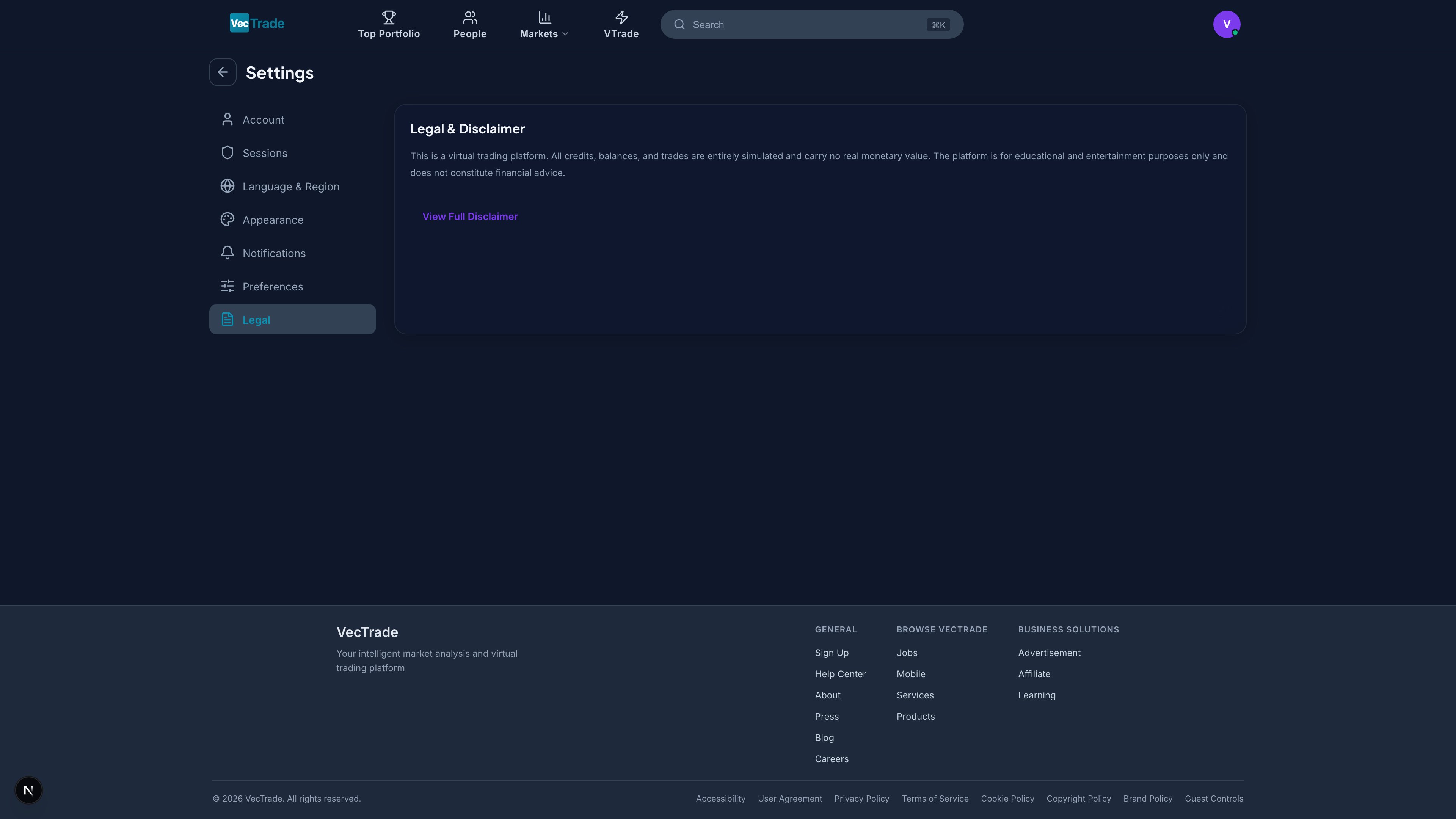 The Legal section displays a summary of VTrade's terms and policies. Click **View Full Disclaimer** to navigate to the complete User Agreement page which includes:
| Document | Description |
| -------------------- | --------------------------------------------------------------------------------------------------- |
| **Terms of Service** | Master agreement governing platform usage, account terms, liability limitations, dispute resolution |
| **Privacy Policy** | Data collection practices, storage policies, third-party sharing, user rights |
| **Risk Disclosure** | Financial risk warnings, simulated trading limitations, educational purpose statement |
| **Cookie Policy** | Types of cookies used, tracking technologies, opt-out mechanisms |
Periodically review updated legal documents, especially the Terms of Service and Privacy Policy. Changes may affect your data rights or platform access conditions.
The Legal section displays a summary of VTrade's terms and policies. Click **View Full Disclaimer** to navigate to the complete User Agreement page which includes:
| Document | Description |
| -------------------- | --------------------------------------------------------------------------------------------------- |
| **Terms of Service** | Master agreement governing platform usage, account terms, liability limitations, dispute resolution |
| **Privacy Policy** | Data collection practices, storage policies, third-party sharing, user rights |
| **Risk Disclosure** | Financial risk warnings, simulated trading limitations, educational purpose statement |
| **Cookie Policy** | Types of cookies used, tracking technologies, opt-out mechanisms |
Periodically review updated legal documents, especially the Terms of Service and Privacy Policy. Changes may affect your data rights or platform access conditions.