> ## Documentation Index
> Fetch the complete documentation index at: https://docs.vectrade.io/llms.txt
> Use this file to discover all available pages before exploring further.
# Trading Desk
> Complete guide to order execution on VTrade — covering all order types, time-in-force options, position management, chart analysis, and the execution simulation engine.
# Trading Desk
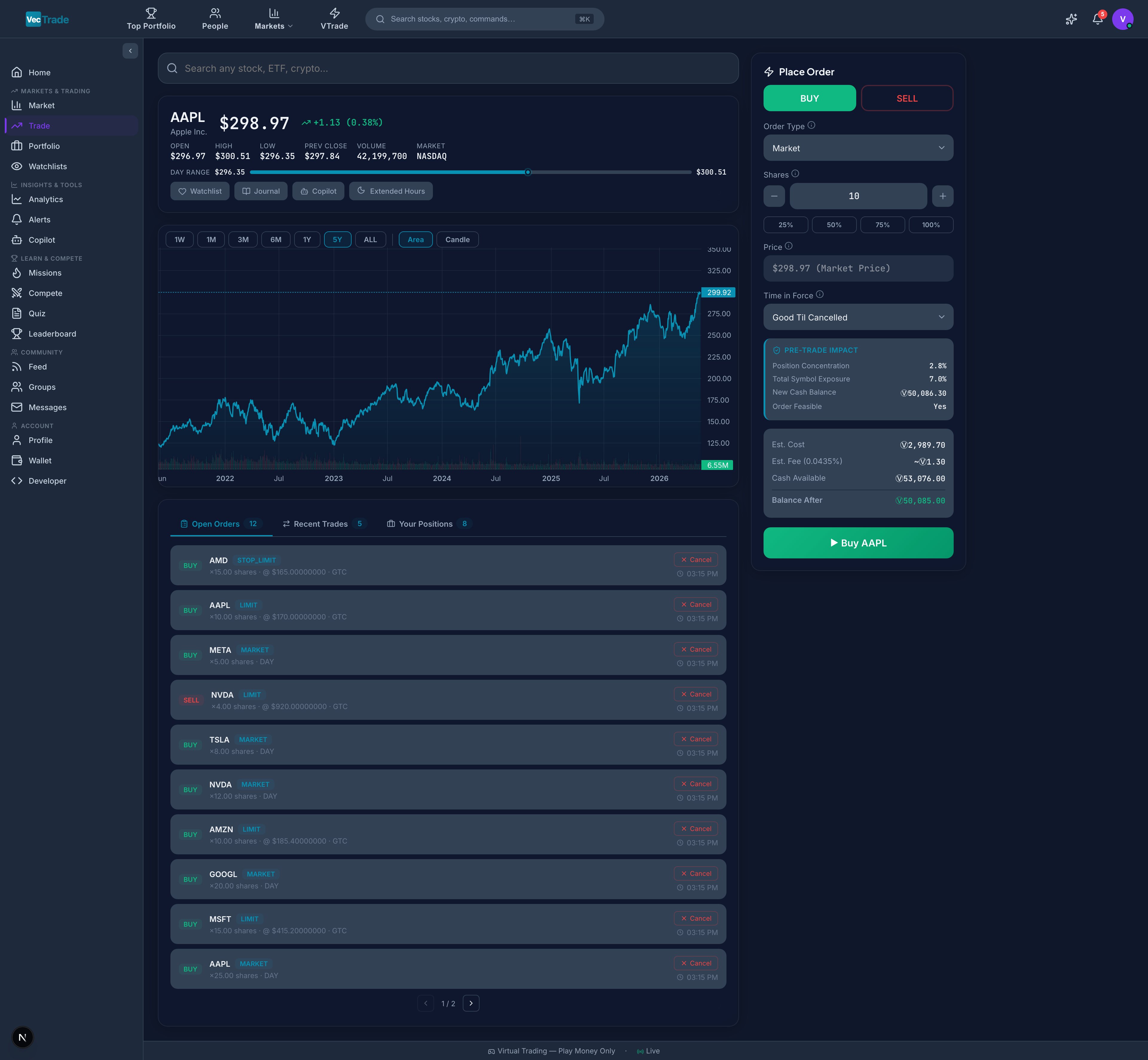
The Trading Desk is VTrade's order execution interface — a professional trading environment designed to replicate the experience of real dealing platforms. It combines real-time charting, a comprehensive order entry system, and live position management into a single unified workspace.
 ***
## Accessing the Trading Desk
Navigate to **VTrade → Desk** from the left sidebar navigation, or use the keyboard shortcut `T` from anywhere on the platform.
**Direct Symbol Access:** Append a ticker symbol to the URL path (e.g., `/vtrade/desk/AAPL`) to load a specific instrument immediately. This is useful when linking from watchlists, alerts, or external tools.
**Cross-linking:** Clicking any ticker symbol throughout VTrade (in your portfolio, market tables, Copilot responses, or social posts) will navigate directly to the Trading Desk with that instrument pre-loaded.
***
## Interface Layout
***
## Accessing the Trading Desk
Navigate to **VTrade → Desk** from the left sidebar navigation, or use the keyboard shortcut `T` from anywhere on the platform.
**Direct Symbol Access:** Append a ticker symbol to the URL path (e.g., `/vtrade/desk/AAPL`) to load a specific instrument immediately. This is useful when linking from watchlists, alerts, or external tools.
**Cross-linking:** Clicking any ticker symbol throughout VTrade (in your portfolio, market tables, Copilot responses, or social posts) will navigate directly to the Trading Desk with that instrument pre-loaded.
***
## Interface Layout
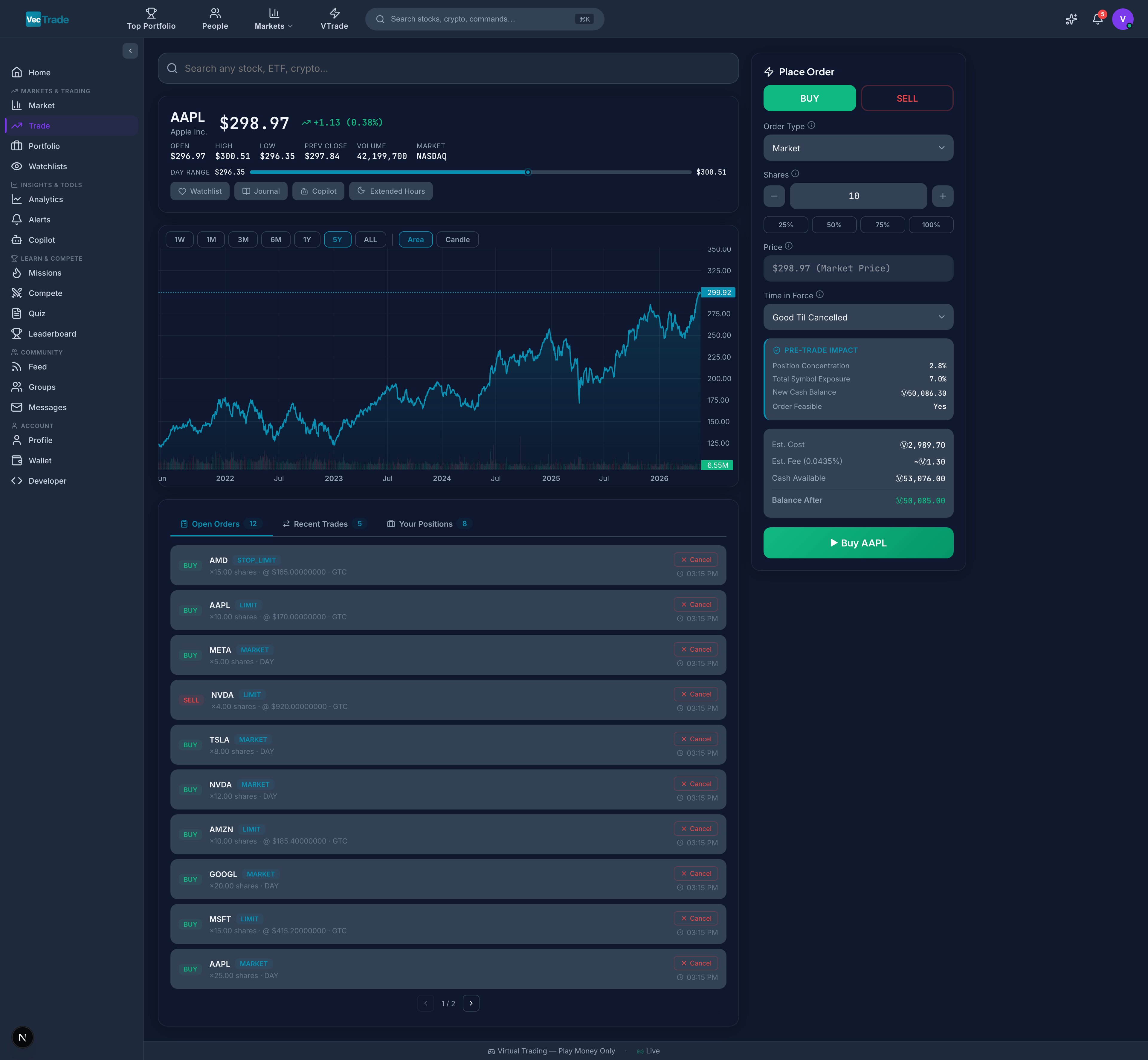 The desk is organized into a responsive two-panel layout optimized for efficient workflow:
### Left Panel — Market Analysis
The left panel provides all the information needed to make an informed trading decision:
**Price Header:**
* Company/instrument full name and exchange badge (e.g., "Apple Inc. · NASDAQ")
* Current market price with live tick indicator (flashes green on uptick, red on downtick)
* Absolute change (\$) and percentage change (%) from previous close
* Trading session indicator (Pre-Market / Regular / After-Hours / Closed)
**Intraday Statistics Bar:**
| Metric | Description |
| ------------- | -------------------------------------------------------------------------- |
| Open | Session opening price |
| High | Highest price reached today |
| Low | Lowest price reached today |
| Prev. Close | Yesterday's closing price |
| Volume | Total shares traded today |
| Avg. Volume | 20-day average daily volume |
| Day Range | Visual slider showing current price position within today's high–low range |
| 52-Week Range | Visual slider showing current price within the annual high–low range |
**Interactive Chart:**
* Full-featured candlestick chart with zoom (mouse wheel), pan (click-drag), and crosshair cursor
* Configurable timeframes: 1min, 5min, 15min, 1hr, 4hr, 1D, 1W
* Multiple chart types: Candlestick (OHLC), Line (close only), Area (filled)
* Technical indicator overlay system (detailed below)
* Volume histogram beneath the price chart
* Drawing tools: trend lines, horizontal lines, Fibonacci retracements
### Right Panel — Order Execution
The right panel is your action center:
**Symbol Search:**
* Auto-complete search field — type ticker symbols or company names
* Results display full name, ticker, exchange badge, and asset class icon
* Supports fuzzy matching (e.g., typing "app" surfaces "Apple Inc. — AAPL")
**Order Direction:**
* **BUY** (green) — Establish or add to a long position
* **SELL** (red) — Establish a short position or close/reduce a long position
**Order Configuration Form:**
* Order type selector (Market, Limit, Stop, Stop-Limit)
* Quantity field with ± stepper and percentage-of-buying-power quick buttons (25%, 50%, 75%, 100%)
* Price field(s) — conditionally visible based on order type
* Time-in-force selector
* Extended hours toggle (when applicable)
**Pre-Submission Preview:**
| Field | Description |
| ---------------------- | ---------------------------------------------------- |
| Estimated Fill Price | Expected execution price based on current bid/ask |
| Total Cost / Proceeds | Quantity × estimated price |
| Commission Fee | Applicable trading fee for this order |
| Net Debit / Credit | Final amount debited from or credited to your wallet |
| Remaining Buying Power | Your cash balance after this order (if filled) |
**Action Buttons:**
* Quick-add to Watchlist
* Quick-add to Favorites
* Request Copilot analysis (opens side panel with AI insight for this symbol)
* Toggle extended hours data visibility
**Position Tabs (Bottom):**
* **Open Orders** — All pending/working orders for any symbol
* **Positions** — All current holdings with P\&L
***
## Instrument Discovery
### Search Capabilities
The search bar supports multiple query formats:
| Query Format | Example | Result |
| ------------- | --------- | -------------------------------- |
| Ticker symbol | `AAPL` | Exact match on Apple Inc. |
| Company name | `Tesla` | Fuzzy matches: Tesla Inc. (TSLA) |
| Currency pair | `EUR/USD` | European Euro vs US Dollar |
| Crypto token | `BTC` | Bitcoin (BTC-USD) |
| Partial match | `NVD` | Returns: NVDA, NVDS, etc. |
**Search Result Cards Display:**
* Full instrument name
* Ticker symbol
* Exchange badge (NASDAQ, NYSE, LSE, TSE, KOSDAQ, CRYPTO, FOREX)
* Asset class icon (stock, ETF, crypto, forex, commodity, index)
* Current price and change %
Keyboard navigation: Use ↑↓ arrow keys to move through results, Enter to select, Escape to dismiss. This enables rapid instrument switching without using the mouse.
***
## Order Types — Complete Reference
### Market Order
**Mechanics:** Submits an order for immediate execution at the best available price (current ask for buys, current bid for sells).
**Characteristics:**
* Guarantees execution (assuming sufficient liquidity)
* Does NOT guarantee a specific fill price
* Subject to slippage in fast-moving or illiquid markets
* Fastest time-to-fill of all order types
**Appropriate Use Cases:**
* Immediate entry when timing matters more than price precision
* Highly liquid instruments where bid-ask spread is minimal (e.g., AAPL, SPY)
* Exiting a losing position quickly to limit further damage
**Example Scenario:**
> AAPL is trading at $185.40 (bid) / $185.42 (ask). You submit a market buy for 100 shares. The order fills at $185.42 — the current ask price. In volatile conditions, the fill could be $185.44 or \$185.50 if the ask moved during transmission.
Avoid market orders on low-volume instruments or during high-volatility events (e.g., earnings releases, FOMC announcements). The spread can widen significantly, resulting in unfavorable fills. Use limit orders instead for price-sensitive entries.
***
### Limit Order
**Mechanics:** Places an order to execute only at your specified price or better. Buy limits execute at or below your price; sell limits execute at or above your price.
**Characteristics:**
* Guarantees price (if filled) — you will never receive a worse price than specified
* Does NOT guarantee execution — the market may never reach your price
* Remains pending until filled, expired, or cancelled
* Visible to the order book (provides liquidity)
**Appropriate Use Cases:**
* Entering a position at a predetermined price level (support zones, technical targets)
* Taking profit at a specific upside target
* Accumulating shares during a pullback without watching the screen
**Example Scenario:**
> AAPL is trading at $185.42. You believe it will dip to $180 before continuing higher. You place a buy limit at $180.00, GTC. Three days later, AAPL dips to $179.80 on a market pullback — your order fills at \$180.00 or better.
***
### Stop Order (Stop-Loss)
**Mechanics:** A dormant order that activates only when the market price reaches your specified stop level. Once triggered, it converts into a **market order** for immediate execution.
**Characteristics:**
* Does not execute until the stop price is touched
* After trigger, behaves exactly like a market order (subject to slippage)
* Used primarily for risk management (downside protection)
* Can also be used for breakout entries (buy-stop above resistance)
**Appropriate Use Cases:**
* Protecting a long position against unexpected decline (stop-loss)
* Entering a breakout: place a buy-stop above resistance, it triggers only if the breakout occurs
* Automating exit discipline to avoid emotional decision-making
**Example Scenario:**
> You own 100 shares of AAPL at an average cost of $185. You set a sell-stop at $175.00 to limit your maximum loss to \~$10/share. If AAPL drops to $175, the stop triggers and a market sell is executed — likely filling near \$175, but potentially lower in a gap-down scenario.
***
### Stop-Limit Order
**Mechanics:** A two-price order that triggers a **limit order** (not market) when the stop price is reached. This gives you price protection after the trigger, at the cost of execution certainty.
**Characteristics:**
* **Stop Price** — The trigger level that activates the order
* **Limit Price** — The worst acceptable fill price after trigger
* If the market gaps through both prices, the order may never fill
* Provides more control than a plain stop order
**Appropriate Use Cases:**
* Stop-loss protection where you refuse to sell below a minimum price (prefer no fill over a terrible fill)
* Earnings events where you want downside protection but fear a flash crash that recovers
**Example Scenario:**
> You own AAPL at $185. You set a stop-limit with stop at $175 and limit at $174.00. If AAPL drops to $175, a limit sell at $174.00 is placed. If AAPL gaps from $176 directly to $172 (below your $174 limit), the order will NOT fill — you retain the position.
Stop-limit orders can fail to protect you in fast-moving markets. If price gaps through your limit, you remain exposed to further losses. Consider whether execution certainty (stop order) or price control (stop-limit) is more important for your specific situation.
***
## Time-in-Force — Duration Parameters
Time-in-force determines how long your order remains active before automatic cancellation:
| Code | Full Name | Duration | Behavior |
| ------- | ------------------- | ---------------------------- | ----------------------------------------------------------------------------------------------- |
| **GTC** | Good Till Cancelled | Up to 90 calendar days | Remains active across trading sessions until filled, cancelled by you, or the 90-day expiry |
| **DAY** | Day Order | Current trading session only | Automatically cancelled at market close (4:00 PM ET for US equities) if unfilled |
| **IOC** | Immediate or Cancel | Instantaneous | Fills whatever quantity is immediately available, cancels any unfilled remainder |
| **FOK** | Fill or Kill | Instantaneous | Must fill the ENTIRE order quantity at once, or the entire order is rejected (no partial fills) |
**GTC** is the default time-in-force. Use **DAY** for intraday-only orders. Use **IOC** when you want whatever is available now but don't want a hanging order.
***
## Step-by-Step: Executing a Buy Order
1. **Load the instrument** — Type the ticker symbol (e.g., `NVDA`) in the search field. Select the correct result from the dropdown (verify the exchange badge matches your intent).
2. **Analyze the chart** — Review the current price action, identify support/resistance levels, and assess momentum using technical indicators. Switch timeframes as needed.
3. **Select direction** — Click the green **BUY** button. The order form configuration updates to reflect a purchase.
4. **Choose order type** — Select from the dropdown: Market (immediate), Limit (price-controlled), Stop (breakout/protection), or Stop-Limit (price-controlled trigger).
5. **Set quantity** — Enter the number of shares/units manually, use the ± stepper, or click the percentage buttons:
* **25%** — Uses 25% of available buying power
* **50%** — Uses 50% of available buying power
* **75%** — Uses 75% of available buying power
* **100%** — Uses entire available buying power (max position)
6. **Configure price** (if applicable) — For Limit orders, enter your target buy price. For Stop orders, enter the trigger price. For Stop-Limit orders, enter both the stop trigger and limit price.
7. **Set time-in-force** — Select GTC, DAY, IOC, or FOK based on your urgency and strategy.
8. **Review the cost preview** — Before submission, examine:
* Estimated fill price (for market orders, based on current ask)
* Total estimated cost (quantity × estimated price)
* Trading fee breakdown
* Net debit amount
* Post-trade buying power remaining
9. **Submit the order** — Click the submit button. A confirmation dialog appears showing all order parameters. Click **Confirm** to send the order to the matching engine.
10. **Monitor status** — The order appears in the **Open Orders** tab (bottom of right panel) showing status: Working, Partially Filled, or Filled. Once fully filled, the position appears in the **Positions** tab.
***
## Step-by-Step: Executing a Sell Order
1. **Select the instrument** — Either search for the ticker, or click directly on an existing position in the **Positions** tab.
2. **Click SELL** — The red sell button activates the sell order form.
3. **Set quantity** — Enter shares to sell manually, or click **Max** to close the entire position. For partial position reduction, enter the specific quantity.
4. **Configure order type and price** — Follow the same logic as buy orders. For take-profit exits, use Limit orders. For stop-loss protection, use Stop orders.
5. **Review and submit** — Verify the proceeds estimate and confirm.
***
## Execution Simulation Engine
VTrade employs a realistic market simulation engine to provide educational value that mirrors live trading conditions:
### Slippage Model
Market orders and triggered stops experience slippage proportional to:
* **Instrument liquidity** — High-volume instruments (AAPL, SPY) experience minimal slippage (0–2 basis points). Low-volume instruments experience wider slippage (5–20 bps).
* **Order size** — Larger orders relative to average volume experience greater market impact.
* **Volatility regime** — During high-VIX environments, slippage parameters increase.
### Partial Fill Simulation
Orders exceeding the simulated available liquidity at a price level may fill in multiple tranches across several seconds or minutes, mimicking real order book dynamics.
### Market Hours Enforcement
| Asset Class | Trading Hours (Local Exchange Time) | Pre/After-Hours |
| ----------- | ----------------------------------------- | ---------------------------------------- |
| US Equities | 9:30 AM – 4:00 PM ET | 4:00 AM – 9:30 AM / 4:00 PM – 8:00 PM ET |
| US ETFs | Same as equities | Same as equities |
| Crypto | 24/7/365 | N/A (always open) |
| Forex | 24/5 (Sunday 5:00 PM – Friday 5:00 PM ET) | N/A |
| Commodities | Varies by contract | N/A |
Orders submitted outside trading hours are queued and executed at the next market open.
### Commission Structure
| Asset Class | Fee Per Trade | Minimum | Notes |
| ----------- | ----------------- | ------- | ------------------------------------------------- |
| US Equities | \$0.005/share | \$1.00 | Capped at \$10.00 per order |
| ETFs | \$0.005/share | \$1.00 | Same as equities |
| Crypto | 0.10% of notional | \$0.50 | — |
| Forex | Spread-based | — | No separate commission; built into bid-ask spread |
| Commodities | \$1.50/contract | \$1.50 | — |
### Position Limits
To encourage diversification and risk management:
* **Maximum single-position size:** 25% of total portfolio value
* **Maximum leverage:** 2:1 for equities, 1:1 for crypto
* **Minimum order size:** 1 share/unit (fractional shares not supported)
***
## Position Management
### Open Orders Panel
Your working orders are displayed in a sortable table:
| Column | Description |
| --------- | ------------------------------------------------- |
| Symbol | Instrument ticker and exchange |
| Type | Order type (Market, Limit, Stop, etc.) |
| Side | BUY or SELL with color indicator |
| Qty | Order quantity (filled/total for partial fills) |
| Price | Limit price, stop price, or "MKT" for market |
| TIF | Time-in-force code |
| Status | Working / Partially Filled / Pending (pre-market) |
| Submitted | Timestamp of order submission |
| Actions | Cancel (×) button to revoke the order |
### Positions Panel
Your current holdings are displayed with real-time P\&L:
| Column | Description |
| --------------- | -------------------------------------------- |
| Symbol | Instrument ticker (clickable — loads chart) |
| Side | LONG or SHORT |
| Qty | Current position size |
| Avg. Cost | Volume-weighted average entry price |
| Market Price | Current last-traded price |
| Market Value | Current position value (Qty × Price) |
| Unrealized P\&L | Dollar gain/loss (Market Value – Cost Basis) |
| Unrealized % | Percentage gain/loss |
| Weight | Position as a percentage of total portfolio |
| Actions | Quick-close button, modify-stop button |
Click any position row to instantly load that instrument's chart on the left panel. This enables rapid analysis of existing holdings without manual search.
***
## Chart Analysis Tools
### Timeframe Options
| Timeframe | Use Case |
| ---------- | -------------------------------------- |
| 1min, 5min | Scalping, intraday momentum |
| 15min | Intraday swing setups |
| 1hr | Multi-day swing trades |
| 4hr | Intermediate trend analysis |
| 1D | Daily trend, support/resistance levels |
| 1W | Long-term trend, major levels |
### Technical Indicators
Add indicators from the overlay menu (click the indicators icon on the chart toolbar):
| Indicator | Category | Description |
| ----------------- | ---------- | ------------------------------------------------------------- |
| SMA (20/50/200) | Trend | Simple Moving Average — smooths price to identify direction |
| EMA (9/21/50) | Trend | Exponential Moving Average — faster response to recent prices |
| Bollinger Bands | Volatility | 2-standard-deviation envelope around 20-SMA |
| RSI (14) | Momentum | Relative Strength Index — overbought (>70) / oversold (\<30) |
| MACD | Momentum | Moving Average Convergence Divergence — crossover signals |
| VWAP | Volume | Volume-Weighted Average Price — institutional benchmark |
| Volume Profile | Volume | Horizontal histogram of volume at each price level |
| Stochastic (14,3) | Momentum | %K and %D lines for momentum extremes |
| ATR (14) | Volatility | Average True Range — measures daily price movement magnitude |
### Drawing Tools
Access drawing tools from the chart toolbar:
* **Trend Line** — Draw diagonal support/resistance lines
* **Horizontal Line** — Mark key price levels
* **Fibonacci Retracement** — Standard 23.6%, 38.2%, 50%, 61.8%, 78.6% levels
* **Rectangle** — Highlight consolidation zones
* **Text Annotation** — Add notes to the chart
***
## Programmatic Order Execution
For users who prefer algorithmic or automated trading, VTrade provides SDK access for programmatic order placement:
### Python SDK
```python theme={null}
from vectrade import VecTrade
client = VecTrade(api_key="your_api_key")
# Market buy
order = client.trade.place_order(
symbol="AAPL",
exchange="NASDAQ",
side="BUY",
order_type="MARKET",
quantity=10
)
print(f"Order {order.id}: {order.status} — filled at ${order.fill_price}")
# Limit buy with GTC
order = client.trade.place_order(
symbol="NVDA",
exchange="NASDAQ",
side="BUY",
order_type="LIMIT",
quantity=5,
limit_price=800.00,
time_in_force="GTC"
)
```
### TypeScript/Node SDK
```typescript theme={null}
import { VecTrade } from '@vectrade/sdk';
const client = new VecTrade({ apiKey: 'your_api_key' });
const order = await client.trade.placeOrder({
symbol: 'AAPL',
exchange: 'NASDAQ',
side: 'BUY',
orderType: 'LIMIT',
quantity: 10,
limitPrice: 180.00,
timeInForce: 'GTC',
});
console.log(`Order ${order.id}: ${order.status}`);
```
Refer to the [Developer Portal](/guides/vtrade/developer) for API key management and the [SDK documentation](/sdks/python) for the complete method reference.
The desk is organized into a responsive two-panel layout optimized for efficient workflow:
### Left Panel — Market Analysis
The left panel provides all the information needed to make an informed trading decision:
**Price Header:**
* Company/instrument full name and exchange badge (e.g., "Apple Inc. · NASDAQ")
* Current market price with live tick indicator (flashes green on uptick, red on downtick)
* Absolute change (\$) and percentage change (%) from previous close
* Trading session indicator (Pre-Market / Regular / After-Hours / Closed)
**Intraday Statistics Bar:**
| Metric | Description |
| ------------- | -------------------------------------------------------------------------- |
| Open | Session opening price |
| High | Highest price reached today |
| Low | Lowest price reached today |
| Prev. Close | Yesterday's closing price |
| Volume | Total shares traded today |
| Avg. Volume | 20-day average daily volume |
| Day Range | Visual slider showing current price position within today's high–low range |
| 52-Week Range | Visual slider showing current price within the annual high–low range |
**Interactive Chart:**
* Full-featured candlestick chart with zoom (mouse wheel), pan (click-drag), and crosshair cursor
* Configurable timeframes: 1min, 5min, 15min, 1hr, 4hr, 1D, 1W
* Multiple chart types: Candlestick (OHLC), Line (close only), Area (filled)
* Technical indicator overlay system (detailed below)
* Volume histogram beneath the price chart
* Drawing tools: trend lines, horizontal lines, Fibonacci retracements
### Right Panel — Order Execution
The right panel is your action center:
**Symbol Search:**
* Auto-complete search field — type ticker symbols or company names
* Results display full name, ticker, exchange badge, and asset class icon
* Supports fuzzy matching (e.g., typing "app" surfaces "Apple Inc. — AAPL")
**Order Direction:**
* **BUY** (green) — Establish or add to a long position
* **SELL** (red) — Establish a short position or close/reduce a long position
**Order Configuration Form:**
* Order type selector (Market, Limit, Stop, Stop-Limit)
* Quantity field with ± stepper and percentage-of-buying-power quick buttons (25%, 50%, 75%, 100%)
* Price field(s) — conditionally visible based on order type
* Time-in-force selector
* Extended hours toggle (when applicable)
**Pre-Submission Preview:**
| Field | Description |
| ---------------------- | ---------------------------------------------------- |
| Estimated Fill Price | Expected execution price based on current bid/ask |
| Total Cost / Proceeds | Quantity × estimated price |
| Commission Fee | Applicable trading fee for this order |
| Net Debit / Credit | Final amount debited from or credited to your wallet |
| Remaining Buying Power | Your cash balance after this order (if filled) |
**Action Buttons:**
* Quick-add to Watchlist
* Quick-add to Favorites
* Request Copilot analysis (opens side panel with AI insight for this symbol)
* Toggle extended hours data visibility
**Position Tabs (Bottom):**
* **Open Orders** — All pending/working orders for any symbol
* **Positions** — All current holdings with P\&L
***
## Instrument Discovery
### Search Capabilities
The search bar supports multiple query formats:
| Query Format | Example | Result |
| ------------- | --------- | -------------------------------- |
| Ticker symbol | `AAPL` | Exact match on Apple Inc. |
| Company name | `Tesla` | Fuzzy matches: Tesla Inc. (TSLA) |
| Currency pair | `EUR/USD` | European Euro vs US Dollar |
| Crypto token | `BTC` | Bitcoin (BTC-USD) |
| Partial match | `NVD` | Returns: NVDA, NVDS, etc. |
**Search Result Cards Display:**
* Full instrument name
* Ticker symbol
* Exchange badge (NASDAQ, NYSE, LSE, TSE, KOSDAQ, CRYPTO, FOREX)
* Asset class icon (stock, ETF, crypto, forex, commodity, index)
* Current price and change %
Keyboard navigation: Use ↑↓ arrow keys to move through results, Enter to select, Escape to dismiss. This enables rapid instrument switching without using the mouse.
***
## Order Types — Complete Reference
### Market Order
**Mechanics:** Submits an order for immediate execution at the best available price (current ask for buys, current bid for sells).
**Characteristics:**
* Guarantees execution (assuming sufficient liquidity)
* Does NOT guarantee a specific fill price
* Subject to slippage in fast-moving or illiquid markets
* Fastest time-to-fill of all order types
**Appropriate Use Cases:**
* Immediate entry when timing matters more than price precision
* Highly liquid instruments where bid-ask spread is minimal (e.g., AAPL, SPY)
* Exiting a losing position quickly to limit further damage
**Example Scenario:**
> AAPL is trading at $185.40 (bid) / $185.42 (ask). You submit a market buy for 100 shares. The order fills at $185.42 — the current ask price. In volatile conditions, the fill could be $185.44 or \$185.50 if the ask moved during transmission.
Avoid market orders on low-volume instruments or during high-volatility events (e.g., earnings releases, FOMC announcements). The spread can widen significantly, resulting in unfavorable fills. Use limit orders instead for price-sensitive entries.
***
### Limit Order
**Mechanics:** Places an order to execute only at your specified price or better. Buy limits execute at or below your price; sell limits execute at or above your price.
**Characteristics:**
* Guarantees price (if filled) — you will never receive a worse price than specified
* Does NOT guarantee execution — the market may never reach your price
* Remains pending until filled, expired, or cancelled
* Visible to the order book (provides liquidity)
**Appropriate Use Cases:**
* Entering a position at a predetermined price level (support zones, technical targets)
* Taking profit at a specific upside target
* Accumulating shares during a pullback without watching the screen
**Example Scenario:**
> AAPL is trading at $185.42. You believe it will dip to $180 before continuing higher. You place a buy limit at $180.00, GTC. Three days later, AAPL dips to $179.80 on a market pullback — your order fills at \$180.00 or better.
***
### Stop Order (Stop-Loss)
**Mechanics:** A dormant order that activates only when the market price reaches your specified stop level. Once triggered, it converts into a **market order** for immediate execution.
**Characteristics:**
* Does not execute until the stop price is touched
* After trigger, behaves exactly like a market order (subject to slippage)
* Used primarily for risk management (downside protection)
* Can also be used for breakout entries (buy-stop above resistance)
**Appropriate Use Cases:**
* Protecting a long position against unexpected decline (stop-loss)
* Entering a breakout: place a buy-stop above resistance, it triggers only if the breakout occurs
* Automating exit discipline to avoid emotional decision-making
**Example Scenario:**
> You own 100 shares of AAPL at an average cost of $185. You set a sell-stop at $175.00 to limit your maximum loss to \~$10/share. If AAPL drops to $175, the stop triggers and a market sell is executed — likely filling near \$175, but potentially lower in a gap-down scenario.
***
### Stop-Limit Order
**Mechanics:** A two-price order that triggers a **limit order** (not market) when the stop price is reached. This gives you price protection after the trigger, at the cost of execution certainty.
**Characteristics:**
* **Stop Price** — The trigger level that activates the order
* **Limit Price** — The worst acceptable fill price after trigger
* If the market gaps through both prices, the order may never fill
* Provides more control than a plain stop order
**Appropriate Use Cases:**
* Stop-loss protection where you refuse to sell below a minimum price (prefer no fill over a terrible fill)
* Earnings events where you want downside protection but fear a flash crash that recovers
**Example Scenario:**
> You own AAPL at $185. You set a stop-limit with stop at $175 and limit at $174.00. If AAPL drops to $175, a limit sell at $174.00 is placed. If AAPL gaps from $176 directly to $172 (below your $174 limit), the order will NOT fill — you retain the position.
Stop-limit orders can fail to protect you in fast-moving markets. If price gaps through your limit, you remain exposed to further losses. Consider whether execution certainty (stop order) or price control (stop-limit) is more important for your specific situation.
***
## Time-in-Force — Duration Parameters
Time-in-force determines how long your order remains active before automatic cancellation:
| Code | Full Name | Duration | Behavior |
| ------- | ------------------- | ---------------------------- | ----------------------------------------------------------------------------------------------- |
| **GTC** | Good Till Cancelled | Up to 90 calendar days | Remains active across trading sessions until filled, cancelled by you, or the 90-day expiry |
| **DAY** | Day Order | Current trading session only | Automatically cancelled at market close (4:00 PM ET for US equities) if unfilled |
| **IOC** | Immediate or Cancel | Instantaneous | Fills whatever quantity is immediately available, cancels any unfilled remainder |
| **FOK** | Fill or Kill | Instantaneous | Must fill the ENTIRE order quantity at once, or the entire order is rejected (no partial fills) |
**GTC** is the default time-in-force. Use **DAY** for intraday-only orders. Use **IOC** when you want whatever is available now but don't want a hanging order.
***
## Step-by-Step: Executing a Buy Order
1. **Load the instrument** — Type the ticker symbol (e.g., `NVDA`) in the search field. Select the correct result from the dropdown (verify the exchange badge matches your intent).
2. **Analyze the chart** — Review the current price action, identify support/resistance levels, and assess momentum using technical indicators. Switch timeframes as needed.
3. **Select direction** — Click the green **BUY** button. The order form configuration updates to reflect a purchase.
4. **Choose order type** — Select from the dropdown: Market (immediate), Limit (price-controlled), Stop (breakout/protection), or Stop-Limit (price-controlled trigger).
5. **Set quantity** — Enter the number of shares/units manually, use the ± stepper, or click the percentage buttons:
* **25%** — Uses 25% of available buying power
* **50%** — Uses 50% of available buying power
* **75%** — Uses 75% of available buying power
* **100%** — Uses entire available buying power (max position)
6. **Configure price** (if applicable) — For Limit orders, enter your target buy price. For Stop orders, enter the trigger price. For Stop-Limit orders, enter both the stop trigger and limit price.
7. **Set time-in-force** — Select GTC, DAY, IOC, or FOK based on your urgency and strategy.
8. **Review the cost preview** — Before submission, examine:
* Estimated fill price (for market orders, based on current ask)
* Total estimated cost (quantity × estimated price)
* Trading fee breakdown
* Net debit amount
* Post-trade buying power remaining
9. **Submit the order** — Click the submit button. A confirmation dialog appears showing all order parameters. Click **Confirm** to send the order to the matching engine.
10. **Monitor status** — The order appears in the **Open Orders** tab (bottom of right panel) showing status: Working, Partially Filled, or Filled. Once fully filled, the position appears in the **Positions** tab.
***
## Step-by-Step: Executing a Sell Order
1. **Select the instrument** — Either search for the ticker, or click directly on an existing position in the **Positions** tab.
2. **Click SELL** — The red sell button activates the sell order form.
3. **Set quantity** — Enter shares to sell manually, or click **Max** to close the entire position. For partial position reduction, enter the specific quantity.
4. **Configure order type and price** — Follow the same logic as buy orders. For take-profit exits, use Limit orders. For stop-loss protection, use Stop orders.
5. **Review and submit** — Verify the proceeds estimate and confirm.
***
## Execution Simulation Engine
VTrade employs a realistic market simulation engine to provide educational value that mirrors live trading conditions:
### Slippage Model
Market orders and triggered stops experience slippage proportional to:
* **Instrument liquidity** — High-volume instruments (AAPL, SPY) experience minimal slippage (0–2 basis points). Low-volume instruments experience wider slippage (5–20 bps).
* **Order size** — Larger orders relative to average volume experience greater market impact.
* **Volatility regime** — During high-VIX environments, slippage parameters increase.
### Partial Fill Simulation
Orders exceeding the simulated available liquidity at a price level may fill in multiple tranches across several seconds or minutes, mimicking real order book dynamics.
### Market Hours Enforcement
| Asset Class | Trading Hours (Local Exchange Time) | Pre/After-Hours |
| ----------- | ----------------------------------------- | ---------------------------------------- |
| US Equities | 9:30 AM – 4:00 PM ET | 4:00 AM – 9:30 AM / 4:00 PM – 8:00 PM ET |
| US ETFs | Same as equities | Same as equities |
| Crypto | 24/7/365 | N/A (always open) |
| Forex | 24/5 (Sunday 5:00 PM – Friday 5:00 PM ET) | N/A |
| Commodities | Varies by contract | N/A |
Orders submitted outside trading hours are queued and executed at the next market open.
### Commission Structure
| Asset Class | Fee Per Trade | Minimum | Notes |
| ----------- | ----------------- | ------- | ------------------------------------------------- |
| US Equities | \$0.005/share | \$1.00 | Capped at \$10.00 per order |
| ETFs | \$0.005/share | \$1.00 | Same as equities |
| Crypto | 0.10% of notional | \$0.50 | — |
| Forex | Spread-based | — | No separate commission; built into bid-ask spread |
| Commodities | \$1.50/contract | \$1.50 | — |
### Position Limits
To encourage diversification and risk management:
* **Maximum single-position size:** 25% of total portfolio value
* **Maximum leverage:** 2:1 for equities, 1:1 for crypto
* **Minimum order size:** 1 share/unit (fractional shares not supported)
***
## Position Management
### Open Orders Panel
Your working orders are displayed in a sortable table:
| Column | Description |
| --------- | ------------------------------------------------- |
| Symbol | Instrument ticker and exchange |
| Type | Order type (Market, Limit, Stop, etc.) |
| Side | BUY or SELL with color indicator |
| Qty | Order quantity (filled/total for partial fills) |
| Price | Limit price, stop price, or "MKT" for market |
| TIF | Time-in-force code |
| Status | Working / Partially Filled / Pending (pre-market) |
| Submitted | Timestamp of order submission |
| Actions | Cancel (×) button to revoke the order |
### Positions Panel
Your current holdings are displayed with real-time P\&L:
| Column | Description |
| --------------- | -------------------------------------------- |
| Symbol | Instrument ticker (clickable — loads chart) |
| Side | LONG or SHORT |
| Qty | Current position size |
| Avg. Cost | Volume-weighted average entry price |
| Market Price | Current last-traded price |
| Market Value | Current position value (Qty × Price) |
| Unrealized P\&L | Dollar gain/loss (Market Value – Cost Basis) |
| Unrealized % | Percentage gain/loss |
| Weight | Position as a percentage of total portfolio |
| Actions | Quick-close button, modify-stop button |
Click any position row to instantly load that instrument's chart on the left panel. This enables rapid analysis of existing holdings without manual search.
***
## Chart Analysis Tools
### Timeframe Options
| Timeframe | Use Case |
| ---------- | -------------------------------------- |
| 1min, 5min | Scalping, intraday momentum |
| 15min | Intraday swing setups |
| 1hr | Multi-day swing trades |
| 4hr | Intermediate trend analysis |
| 1D | Daily trend, support/resistance levels |
| 1W | Long-term trend, major levels |
### Technical Indicators
Add indicators from the overlay menu (click the indicators icon on the chart toolbar):
| Indicator | Category | Description |
| ----------------- | ---------- | ------------------------------------------------------------- |
| SMA (20/50/200) | Trend | Simple Moving Average — smooths price to identify direction |
| EMA (9/21/50) | Trend | Exponential Moving Average — faster response to recent prices |
| Bollinger Bands | Volatility | 2-standard-deviation envelope around 20-SMA |
| RSI (14) | Momentum | Relative Strength Index — overbought (>70) / oversold (\<30) |
| MACD | Momentum | Moving Average Convergence Divergence — crossover signals |
| VWAP | Volume | Volume-Weighted Average Price — institutional benchmark |
| Volume Profile | Volume | Horizontal histogram of volume at each price level |
| Stochastic (14,3) | Momentum | %K and %D lines for momentum extremes |
| ATR (14) | Volatility | Average True Range — measures daily price movement magnitude |
### Drawing Tools
Access drawing tools from the chart toolbar:
* **Trend Line** — Draw diagonal support/resistance lines
* **Horizontal Line** — Mark key price levels
* **Fibonacci Retracement** — Standard 23.6%, 38.2%, 50%, 61.8%, 78.6% levels
* **Rectangle** — Highlight consolidation zones
* **Text Annotation** — Add notes to the chart
***
## Programmatic Order Execution
For users who prefer algorithmic or automated trading, VTrade provides SDK access for programmatic order placement:
### Python SDK
```python theme={null}
from vectrade import VecTrade
client = VecTrade(api_key="your_api_key")
# Market buy
order = client.trade.place_order(
symbol="AAPL",
exchange="NASDAQ",
side="BUY",
order_type="MARKET",
quantity=10
)
print(f"Order {order.id}: {order.status} — filled at ${order.fill_price}")
# Limit buy with GTC
order = client.trade.place_order(
symbol="NVDA",
exchange="NASDAQ",
side="BUY",
order_type="LIMIT",
quantity=5,
limit_price=800.00,
time_in_force="GTC"
)
```
### TypeScript/Node SDK
```typescript theme={null}
import { VecTrade } from '@vectrade/sdk';
const client = new VecTrade({ apiKey: 'your_api_key' });
const order = await client.trade.placeOrder({
symbol: 'AAPL',
exchange: 'NASDAQ',
side: 'BUY',
orderType: 'LIMIT',
quantity: 10,
limitPrice: 180.00,
timeInForce: 'GTC',
});
console.log(`Order ${order.id}: ${order.status}`);
```
Refer to the [Developer Portal](/guides/vtrade/developer) for API key management and the [SDK documentation](/sdks/python) for the complete method reference.