

Trading Desk
The Trading Desk is VTrade’s order execution interface — a professional trading environment designed to replicate the experience of real dealing platforms. It combines real-time charting, a comprehensive order entry system, and live position management into a single unified workspace.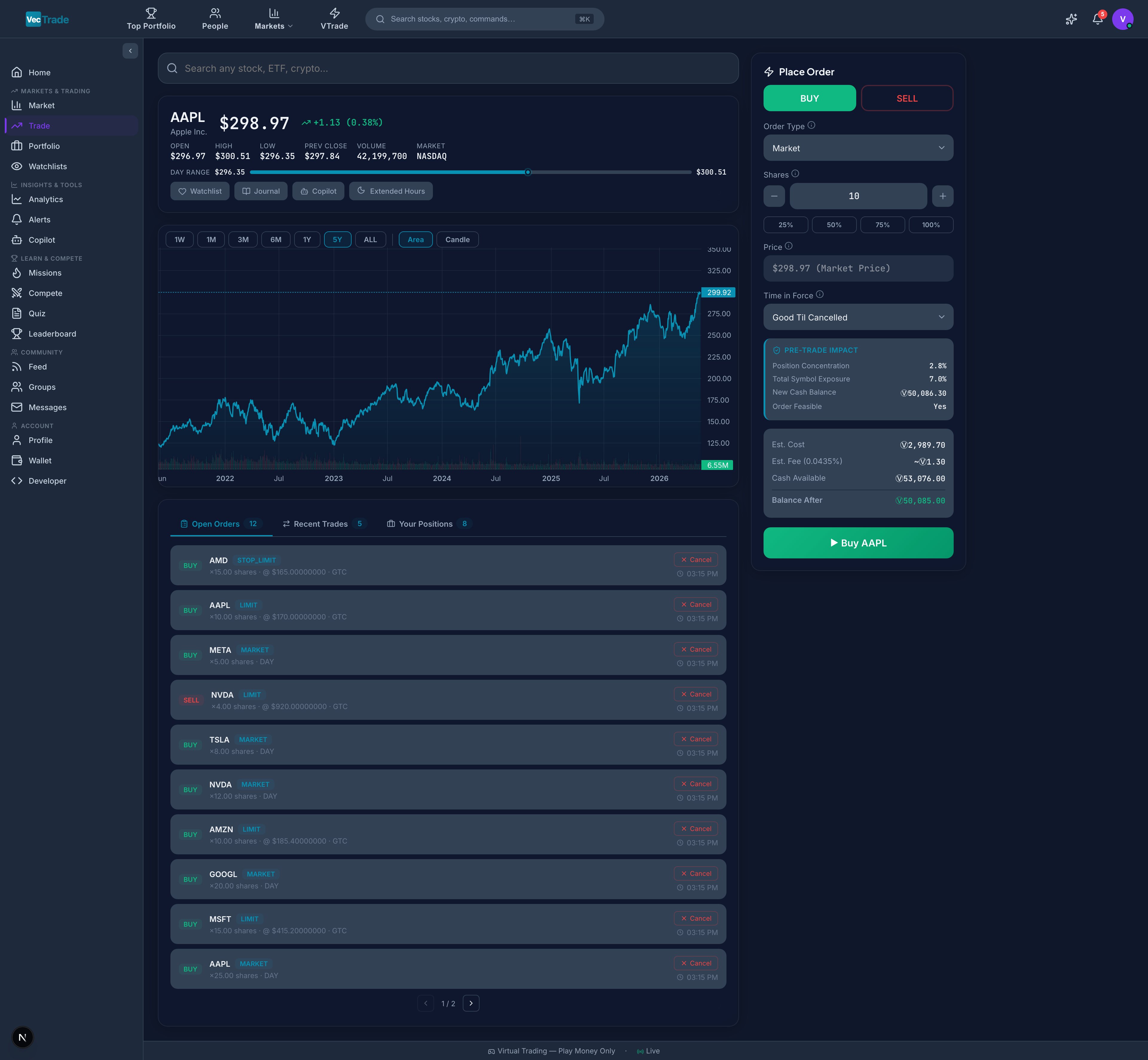
Accessing the Trading Desk
Navigate to VTrade → Desk from the left sidebar navigation, or use the keyboard shortcutT from anywhere on the platform.
Direct Symbol Access: Append a ticker symbol to the URL path (e.g., /vtrade/desk/AAPL) to load a specific instrument immediately. This is useful when linking from watchlists, alerts, or external tools.
Cross-linking: Clicking any ticker symbol throughout VTrade (in your portfolio, market tables, Copilot responses, or social posts) will navigate directly to the Trading Desk with that instrument pre-loaded.
Interface Layout
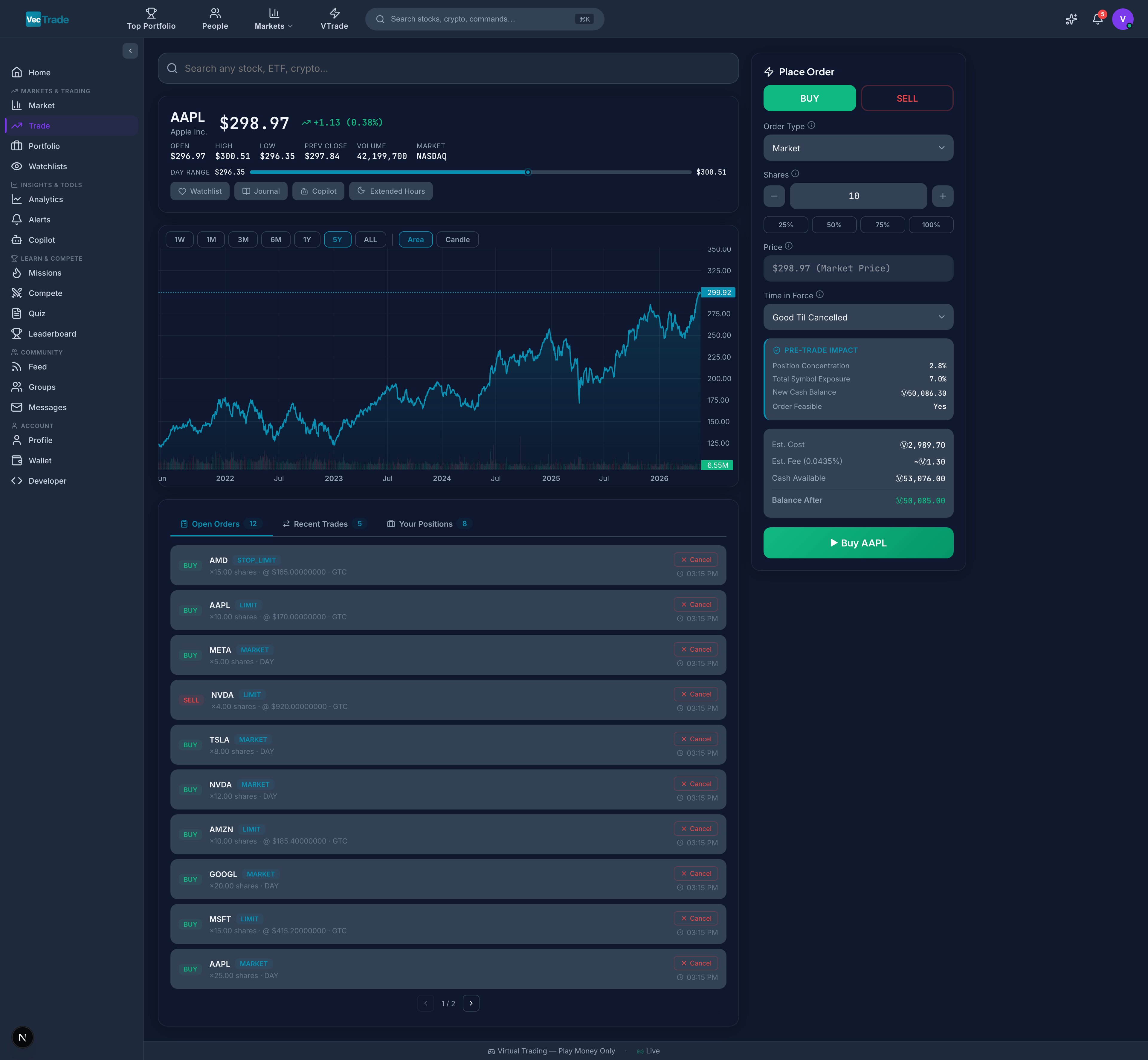
Left Panel — Market Analysis
The left panel provides all the information needed to make an informed trading decision: Price Header:- Company/instrument full name and exchange badge (e.g., “Apple Inc. · NASDAQ”)
- Current market price with live tick indicator (flashes green on uptick, red on downtick)
- Absolute change ($) and percentage change (%) from previous close
- Trading session indicator (Pre-Market / Regular / After-Hours / Closed)
Interactive Chart:
- Full-featured candlestick chart with zoom (mouse wheel), pan (click-drag), and crosshair cursor
- Configurable timeframes: 1min, 5min, 15min, 1hr, 4hr, 1D, 1W
- Multiple chart types: Candlestick (OHLC), Line (close only), Area (filled)
- Technical indicator overlay system (detailed below)
- Volume histogram beneath the price chart
- Drawing tools: trend lines, horizontal lines, Fibonacci retracements
Right Panel — Order Execution
The right panel is your action center: Symbol Search:- Auto-complete search field — type ticker symbols or company names
- Results display full name, ticker, exchange badge, and asset class icon
- Supports fuzzy matching (e.g., typing “app” surfaces “Apple Inc. — AAPL”)
- BUY (green) — Establish or add to a long position
- SELL (red) — Establish a short position or close/reduce a long position
- Order type selector (Market, Limit, Stop, Stop-Limit)
- Quantity field with ± stepper and percentage-of-buying-power quick buttons (25%, 50%, 75%, 100%)
- Price field(s) — conditionally visible based on order type
- Time-in-force selector
- Extended hours toggle (when applicable)
Action Buttons:
- Quick-add to Watchlist
- Quick-add to Favorites
- Request Copilot analysis (opens side panel with AI insight for this symbol)
- Toggle extended hours data visibility
- Open Orders — All pending/working orders for any symbol
- Positions — All current holdings with P&L
Instrument Discovery
Search Capabilities
The search bar supports multiple query formats:
Search Result Cards Display:
- Full instrument name
- Ticker symbol
- Exchange badge (NASDAQ, NYSE, LSE, TSE, KOSDAQ, CRYPTO, FOREX)
- Asset class icon (stock, ETF, crypto, forex, commodity, index)
- Current price and change %
Order Types — Complete Reference
Market Order
Mechanics: Submits an order for immediate execution at the best available price (current ask for buys, current bid for sells). Characteristics:- Guarantees execution (assuming sufficient liquidity)
- Does NOT guarantee a specific fill price
- Subject to slippage in fast-moving or illiquid markets
- Fastest time-to-fill of all order types
- Immediate entry when timing matters more than price precision
- Highly liquid instruments where bid-ask spread is minimal (e.g., AAPL, SPY)
- Exiting a losing position quickly to limit further damage
AAPL is trading at 185.42 (ask). You submit a market buy for 100 shares. The order fills at 185.44 or $185.50 if the ask moved during transmission.
Limit Order
Mechanics: Places an order to execute only at your specified price or better. Buy limits execute at or below your price; sell limits execute at or above your price. Characteristics:- Guarantees price (if filled) — you will never receive a worse price than specified
- Does NOT guarantee execution — the market may never reach your price
- Remains pending until filled, expired, or cancelled
- Visible to the order book (provides liquidity)
- Entering a position at a predetermined price level (support zones, technical targets)
- Taking profit at a specific upside target
- Accumulating shares during a pullback without watching the screen
AAPL is trading at 180 before continuing higher. You place a buy limit at 179.80 on a market pullback — your order fills at $180.00 or better.
Stop Order (Stop-Loss)
Mechanics: A dormant order that activates only when the market price reaches your specified stop level. Once triggered, it converts into a market order for immediate execution. Characteristics:- Does not execute until the stop price is touched
- After trigger, behaves exactly like a market order (subject to slippage)
- Used primarily for risk management (downside protection)
- Can also be used for breakout entries (buy-stop above resistance)
- Protecting a long position against unexpected decline (stop-loss)
- Entering a breakout: place a buy-stop above resistance, it triggers only if the breakout occurs
- Automating exit discipline to avoid emotional decision-making
You own 100 shares of AAPL at an average cost of 175.00 to limit your maximum loss to ~175, the stop triggers and a market sell is executed — likely filling near $175, but potentially lower in a gap-down scenario.
Stop-Limit Order
Mechanics: A two-price order that triggers a limit order (not market) when the stop price is reached. This gives you price protection after the trigger, at the cost of execution certainty. Characteristics:- Stop Price — The trigger level that activates the order
- Limit Price — The worst acceptable fill price after trigger
- If the market gaps through both prices, the order may never fill
- Provides more control than a plain stop order
- Stop-loss protection where you refuse to sell below a minimum price (prefer no fill over a terrible fill)
- Earnings events where you want downside protection but fear a flash crash that recovers
You own AAPL at 175 and limit at 175, a limit sell at 176 directly to 174 limit), the order will NOT fill — you retain the position.
Time-in-Force — Duration Parameters
Time-in-force determines how long your order remains active before automatic cancellation:Step-by-Step: Executing a Buy Order
-
Load the instrument — Type the ticker symbol (e.g.,
NVDA) in the search field. Select the correct result from the dropdown (verify the exchange badge matches your intent). - Analyze the chart — Review the current price action, identify support/resistance levels, and assess momentum using technical indicators. Switch timeframes as needed.
- Select direction — Click the green BUY button. The order form configuration updates to reflect a purchase.
- Choose order type — Select from the dropdown: Market (immediate), Limit (price-controlled), Stop (breakout/protection), or Stop-Limit (price-controlled trigger).
-
Set quantity — Enter the number of shares/units manually, use the ± stepper, or click the percentage buttons:
- 25% — Uses 25% of available buying power
- 50% — Uses 50% of available buying power
- 75% — Uses 75% of available buying power
- 100% — Uses entire available buying power (max position)
- Configure price (if applicable) — For Limit orders, enter your target buy price. For Stop orders, enter the trigger price. For Stop-Limit orders, enter both the stop trigger and limit price.
- Set time-in-force — Select GTC, DAY, IOC, or FOK based on your urgency and strategy.
-
Review the cost preview — Before submission, examine:
- Estimated fill price (for market orders, based on current ask)
- Total estimated cost (quantity × estimated price)
- Trading fee breakdown
- Net debit amount
- Post-trade buying power remaining
- Submit the order — Click the submit button. A confirmation dialog appears showing all order parameters. Click Confirm to send the order to the matching engine.
- Monitor status — The order appears in the Open Orders tab (bottom of right panel) showing status: Working, Partially Filled, or Filled. Once fully filled, the position appears in the Positions tab.
Step-by-Step: Executing a Sell Order
- Select the instrument — Either search for the ticker, or click directly on an existing position in the Positions tab.
- Click SELL — The red sell button activates the sell order form.
- Set quantity — Enter shares to sell manually, or click Max to close the entire position. For partial position reduction, enter the specific quantity.
- Configure order type and price — Follow the same logic as buy orders. For take-profit exits, use Limit orders. For stop-loss protection, use Stop orders.
- Review and submit — Verify the proceeds estimate and confirm.
Execution Simulation Engine
VTrade employs a realistic market simulation engine to provide educational value that mirrors live trading conditions:Slippage Model
Market orders and triggered stops experience slippage proportional to:- Instrument liquidity — High-volume instruments (AAPL, SPY) experience minimal slippage (0–2 basis points). Low-volume instruments experience wider slippage (5–20 bps).
- Order size — Larger orders relative to average volume experience greater market impact.
- Volatility regime — During high-VIX environments, slippage parameters increase.
Partial Fill Simulation
Orders exceeding the simulated available liquidity at a price level may fill in multiple tranches across several seconds or minutes, mimicking real order book dynamics.Market Hours Enforcement
Orders submitted outside trading hours are queued and executed at the next market open.
Commission Structure
Position Limits
To encourage diversification and risk management:- Maximum single-position size: 25% of total portfolio value
- Maximum leverage: 2:1 for equities, 1:1 for crypto
- Minimum order size: 1 share/unit (fractional shares not supported)
Position Management
Open Orders Panel
Your working orders are displayed in a sortable table:Positions Panel
Your current holdings are displayed with real-time P&L:Chart Analysis Tools
Timeframe Options
Technical Indicators
Add indicators from the overlay menu (click the indicators icon on the chart toolbar):Drawing Tools
Access drawing tools from the chart toolbar:- Trend Line — Draw diagonal support/resistance lines
- Horizontal Line — Mark key price levels
- Fibonacci Retracement — Standard 23.6%, 38.2%, 50%, 61.8%, 78.6% levels
- Rectangle — Highlight consolidation zones
- Text Annotation — Add notes to the chart